
WhatsApp is the most popular messaging program right now because it includes an integrated AI feature that lets you talk to anyone, anywhere in the entire world, safely and securely. While most people use it on their mobile phones, many users also want to access WhatsApp on their laptops or tablets without the hassle of downloading the application. The good news is that WhatsApp offers a simple solution through WhatsApp Web and WhatsApp Multi-Device features.
In this blog, we’ll walk you through the step-by-step process of using WhatsApp on your laptop or tablet without installing the app.
Step 1: To open WhatsApp Web, such as https://web.whatsapp.com URL on Your Browser on your PC or laptop
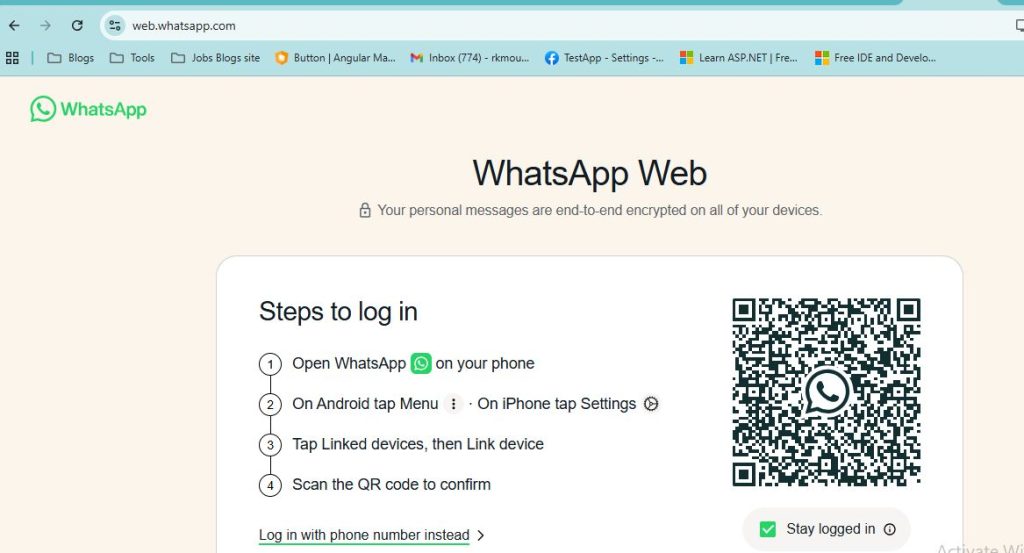
On your laptop or tablet, open any browser such as Google Chrome, Safari, Edge, or Firefox.
Visit the official link: https://web.whatsapp.com
A QR code will show up on the device screen, like a laptop, PC, or Tablet, when you click on the https://web.whatsapp.com URL.
Step 2: Open WhatsApp on Your Mobile
First, unlock your mobile device and open the WhatsApp app, which is installed on your device.
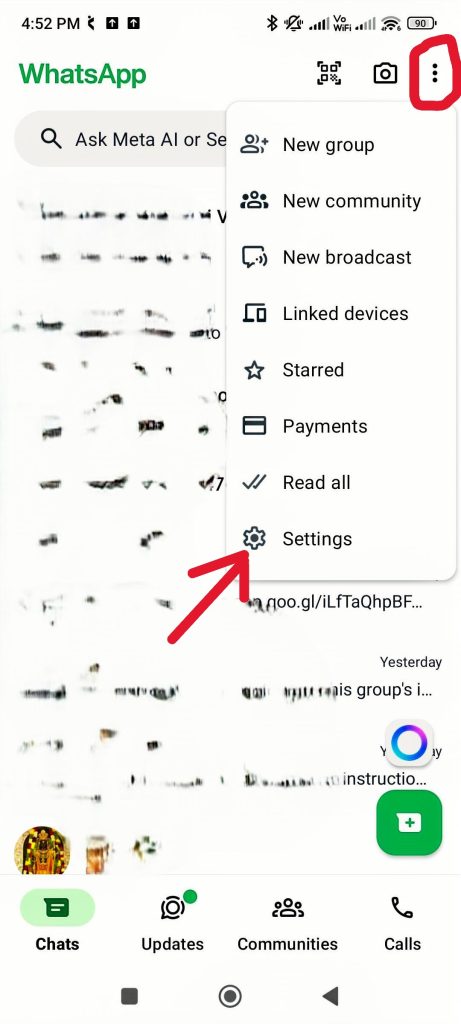
Navigate to the settings (on an iPhone) or menu portion top right side corner (3 dots on an Android phone) and click on settings option(mentioned above image).
Step 3: Link Your Device
After clicking settings option, Touch or click on the below mentioned higlight red icon. Point your phone’s camera at the QR code shown on your laptop or tablet browser.
Once you scan QR then you will display a green button labeled “Linked or connected with gadgets.” You can link a device.
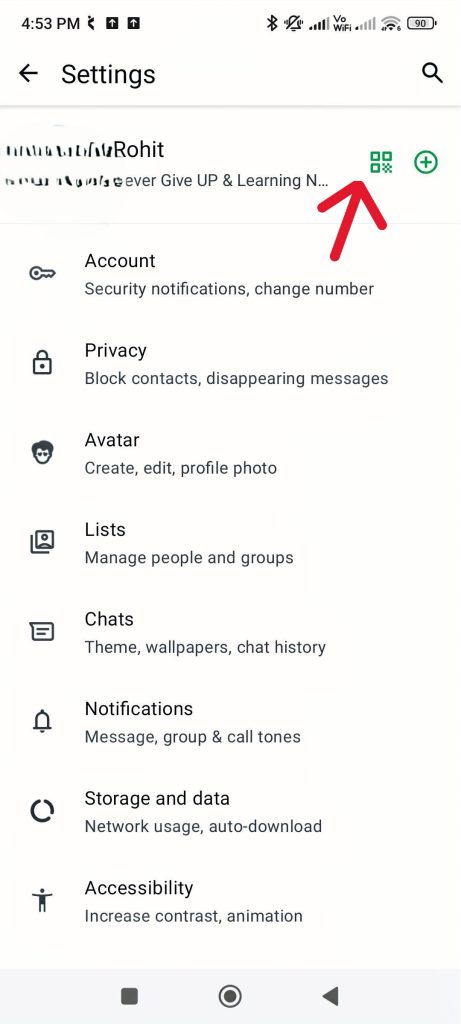
It will take some time, approximately seconds, and your WhatsApp account will be mirrored on the screen.
Step 4: Start Using WhatsApp Without Download
By using the https://web.whatsapp.com URL, you can start sending and receiving messages on WhatsApp directly from any web browser on your laptop or tablet device after connecting with the WhatsApp app.
Features available:
Send/receive text messages
Share images, documents, and videos
Receive notifications
Participate in group chats
You can use WhatsApp without installing any app on your device (PC or Tablet).
Extra Tip: WhatsApp Multi-Device Feature
WhatsApp recently introduced Multi-Device Support, allowing you to use WhatsApp on your laptop or tablet even if your phone is not connected to the internet. You can connect a maximum of four additional devices along with your primary mobile phone. Chats remain end-to-end encrypted.
Advantages of Using WhatsApp Web
- No installation required – Works on any browser.
- By using https://web.whatsapp.com URL on any device, you can easily access from multiple devices, such as a PC, tablet, or laptop, among any other devices.
- Fast and easy— WhatsApp app is best for learning or doing work due to its built-in AI feature.
- Secure – Chats remain private and encrypted.
Limitations to Keep in Mind
- Some features (like voice/video calls) may be limited.
- Your phone must be logged in for your web WhatsApp app connection to stay in active mode.
- Internet connection required for both devices (except when using the multi-device feature).
Conclusion
To use WhatsApp on other devices, such as a laptop/pc or tablet, you don’t need to download or install the WhatsApp application. The Multi-Device functionality or WhatsApp Web (https://web.whatsapp.com) allows you to manage chats, transfer files, and share content with simplicity using any web browser (Chrome, Edge) from your device, such as a PC, laptop, or tablet. This is especially useful for professionals, students, and anyone who spends a lot of time on their computer.
